Help Me: Brain Tricky Story – A Funny 2D Puzzle Adventure
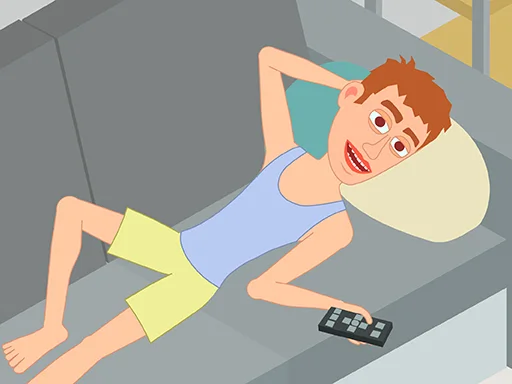
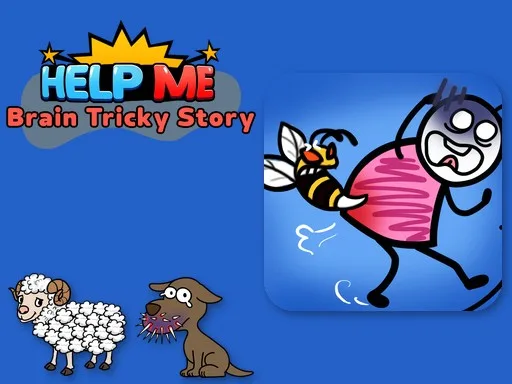
In this casual HTML5 title, stickman heroes stumble into absurd predicaments that only your brain can untangle. Each level presents a short, hand‑drawn scenario that mixes logic, physics, and a splash of humor. You’ll guide a sad dog away from a prickly sea urchin, pluck caterpillars from a lunchbox with chopsticks, and solve a dozen other quirky puzzles. The game runs on WebGL, so it feels crisp on mobile and desktop alike. If you enjoy quick mind challenges that reward clever thinking, this quiz‑style collection will keep you hooked from the first tap.
Help Me: Brain Tricky Story – How the Controls Work
The interface stays simple so you can focus on each puzzle’s hidden trick. Use the mouse or touch screen to explore, interact, and rearrange objects. Every action maps to a clear on‑screen button, and the game saves progress automatically.
- Mouse click the scene to zoom in
- click objects to interact
- click and drag objects to move them
- Touch tap the scene to zoom in
- tap objects to interact
- touch and drag objects to move them
- Buttons Pause sound music level menu home Hint Skip
Help Me: Brain Tricky Story – Winning Strategies
Start each stage by scanning the entire scene. Look for objects that react to gravity or water flow; many solutions hinge on physics cues. When a stick figure appears stuck, try dragging a nearby tool or repositioning a barrier. Remember that the game rewards out‑of‑the‑box thinking, so experiment with unconventional combos. If a puzzle feels impossible, pause, listen to the ambient sounds, and let the mind reset. Hints are available after a short ad, but using them sparingly sharpens your logic muscles. Progression speeds up as you learn each character’s quirks, turning every new level into a fresh brain teaser.
Ready to put your mind to the test? Jump into the goofy world of PlayHop and start solving today. The next stickman mishap awaits your clever fix.
Mouse click the scene to zoom in click objects to interact click and drag objects to move them Touch tap the scene to zoom in tap objects to interact touch and drag objects to move them Buttons Pause sound music level menu home Hint Skip